



Welcome to the UHMC Virtual Lab Support Page
Menu
Home
Students
Instructors
Staff
Open A Help Ticket
Contact Us
Contact Us
Hours: Monday – Friday 8:00am-4:30pm
Call us: 808-984-3283
Email Us: uhmchelp@hawaii.edu
Open a help ticket
Our new virtual computing labs offers students access to UHMC software such as Windows 11, Office 2021 and other software titles via their own PC or Mac web browser. It works while on campus or off, around the clock! Don't have a computer at home? Eligible UHMC students can borrow one from the library!
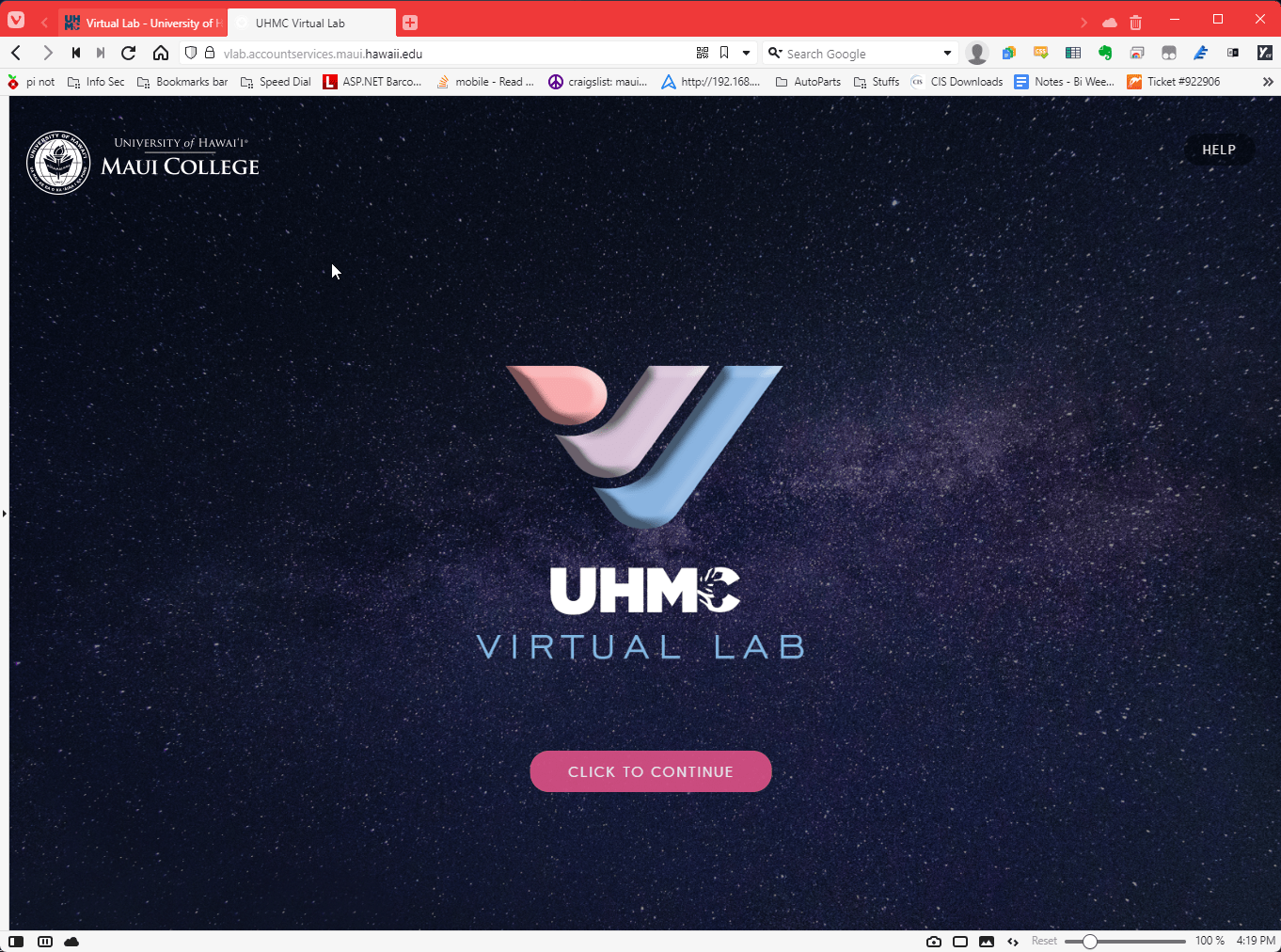
Fall 2025 Desktops
Use the tabs below to explore the applications that come with each of the virtual desktops. By default, all UHMC students receive access to the Business Lab. If you require access to other desktops, please email uhmchelp@hawaii.edu with details on which desktop(s) to add to your account.
The GIS Virtual Desktop offers 30 Windows 11 Desktops featuring ESRI Arc GIS 3.2.1. This desktop is specially licensed desktop and only available to UHMC students enrolled in our GIS 150 class. For more information on registering for this class, please email Falon Wills at falonw@hawaii.edu. This desktop also includes Office 2019 Professional Plus and other productivity software. Word 2019, Excel 2019, Power Point 2019, Access 2019, Publisher 2019, Outlook 2019, Visual Studio Code, Google Chrome, Firefox, Apache Netbeans, VLC Player, Alice 3, Adobe Acrobat DC, Java JDK, and Zoom.
Request access to GIS VLab Desktop: Virtual Lab Request Form
The Adobe Creative Cloud Virtual Lab offers 20 Windows 11 Desktops featuring Adobe Creative Cloud and Office 2019 Professional Plus and other productivity software. Adobe Areo, After Effects, Animate, Audition, InCopy, InDesign, Lightroom, Media Encoder, Dimension, Photoshop, Premier Pro, Premier Rush, Substance 3D Designer, Substance 3D Modeler, Substance 3D Painter, Substance 3D Sampler, Substance 3D Stager, UXP Developer Tool, Dreamweaver, Illustrator, Word 2019, Excel 2019, Power Point 2019, Access 2019, Publisher 2019, Outlook 2019, Visual Studio Code, Google Chrome, Firefox, VLC Player, Alice 3, Adobe Acrobat DC, Java JDK, and Zoom.
Request access to Adobe Creative Cloud VLab Desktop: Virtual Lab Request Form
Accessing your virtual desktops is quick and easy. The virtual lab extends the reach of UHMC computing resources to students whether at home or on campus. Your desktop files, preferences, as well as application setting follow you no matter where you log on from.
Note: Be sure to log off your virtual session to keep your files and account secure. This is especially true when using a shared computer such as in a campus computing lab.
Method - Web Browser
Tutorial: https://go.hawaii.edu/aJQ
Use a web browser to log on with your UH account to our virtual lab at https://vlab.maui.hawaii.edu. Just be sure you are using a modern web browser such as Chrome, Safari, Firefox, or Edge.
Note: If you are getting an error when trying the link, delete your cookies for the webpage and retry.
It should redirect you to the UH login screen. Sign in using your UH username and password.
On the Citrix homepage, click the "desktop" tab at the top. Now click on the computer icon above "UHMC Virtual Lab" and you should be starting up the virtual desktop on a new tab.
Accessing your virtual desktops is quick and easy. The virtual lab extends the reach of UHMC computing resources to students whether at home or on campus. Your desktop files, preferences, as well as application setting follow you no matter where you log on from.
Note: Be sure to log off your virtual session to keep your files and account secure. This is especially true when using a shared computer such as in a campus computing lab.
Method - Select Campus computer labs
Kalama 206a, Kupa'a 102, Kupa'a 204, and the UHMC Library have been optimized for virtual lab usage. Logging in is a bit different that a traditional computer.
Here are the steps for accessing your virtual lab desktop:
- Locate a computer with the IGEL desktop (above left). Press the power button.
- Now it should display the UH Login Screen (above right) along with a License Warning pop up. First click "ok" for the pop up and then input your username and password.

- If you have only one virtual lab desktop, it should automatically use it.
If you have multiple virtual lab desktops, it should display your Citrix home page. - Your desktop should now be ready to use.

- When you are finished using the virtual lab, click the 3 lines at the top, then the 3 dots on the right, and click "Log off" (shown above).

- Finally, press the power button on the IGEL hardware and click "Shutdown" on the screen.


To request access to the Adobe Creative cloud VLab, please fill out this request form: Virtual Lab Request Form
Follow one of the tutorial methods above before moving on to accessing Adobe Creative Cloud VLab tutorial below.
Tutorial: https://go.hawaii.edu/acfU
Accessing Adobe Creative Cloud from the VD-ADOBELAB desktop is simple and convenient. The virtual desktop provides students with access to Adobe's suite of applications, whether they are working from home or on campus. Please note that access to the VD-ADOBELAB desktop is granted only upon request. Once granted, your files, preferences, and application settings will follow you regardless of where you log in. It’s essential to log off your virtual session when you are done, especially when using a shared computer, to ensure the security of your files and account.
How do keep my account secure?
As with any computer system, security should be top of mind to ensure your information is accessed and available to only you. Here are a tips to keep your account safe
- Always log out of your account, whether logged in via a browser or a classroom lab computer.
- Do not share your account with anyone.
- Do not fall victim to phishing email or phone call attempts, UHMC will never request your username or password over the phone, emails, or otherwise.
If you encounter an issue, please restart the Igel thin client.
If that doesn’t solve the issue, then call 808-984-3283 or e-mail uhmchelp@hawaii.edu and we will troubleshoot it.
Please take a picture of the error message and email it or mention it by phone.
You can restart the device by pressing the power button.
Short press is when you push the power button for 1 second and it will notify you that the hardware is shutting down.
Long press is when you push on the power button and hold it for 4 seconds or more and it will instantly shut down the client without notifying the user.
Both short and long press will shut down the thin client and reset the setting on startup. As a result, the Igel thinclient will boot up with fresh settings and it should present you with a UH login page.
Some of the issues that was reported to us by users are the following:
- Cannot complete your request
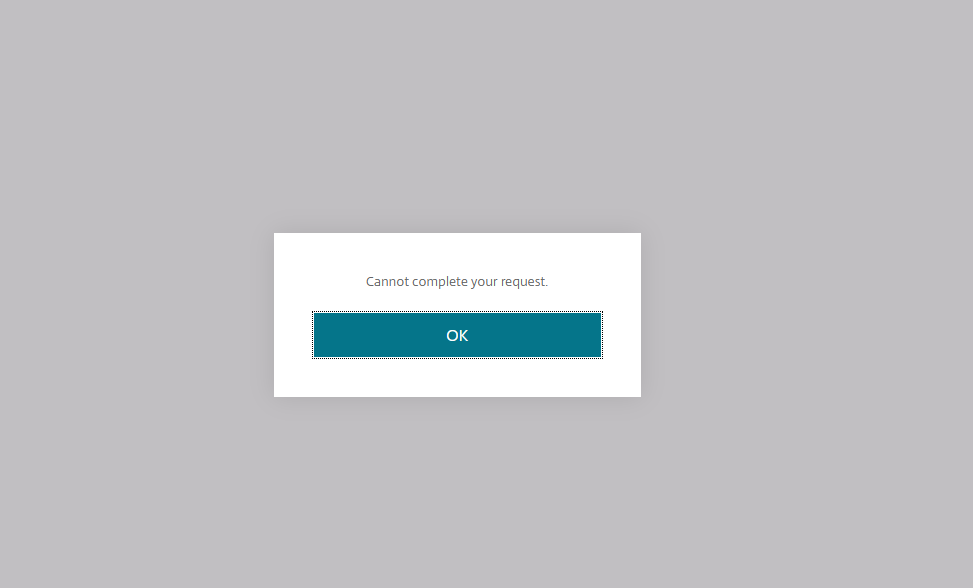
2. Expired password

Both issues must be reported to us to resolve the issue. Call 808-984-3283 or e-mail uhmchelp@hawaii.edu
- Title: Citrix smart card error
- Type: Authentication error
Symptoms or Error
When using a smart card authentication, after the user logs off or the current session times out, this will prevent the user from logging back in and prompt an error return message.
With a smart card the error is;
- "You cannot log on using a smart card"
- "Please close your browser to protect your account"

Video of Login smart card error
This error message is caused by the user (you) not closing the browser window when logging off the smart card.
This is because the browser may cache the token or PIN.
(The above means that someone could access your account, data, & information from your previous session).
- Solution 1 (Open private tab)
- Open a private tab in your browser and attempt to log back in at vlab.maui.hawaii.edu
- (How to open a private tab)
- Solution 2 (Restart System)
- Close the browser or restart the system
- Reopen your browser and go to vlab.maui.hawaii.edu
- Attempt to log back into the account
If further assistance is needed please contact us, at the UHMC HelpDesk;
Hours: Monday– Friday 8:00 am-4:30 pm
Call us: (808) 984-3283
Email Us: uhmchelp@hawaii.edu